The CareerRat app
How the chat-first desktop workspace is organized and how to run it.
The CareerRat app is a chat-first desktop workspace. It reads the same canonical SQLite workspace used by the CLI and skills, and its supported actions write through the same validated domain operations. There is no separate legacy dashboard to keep in sync.
Running the app
careerrat start boots the live app for you as part of first run. To run
it on its own:
careerrat tracker-dev    # local app server on http://localhost:7777
careerrat tracker        # verify and checkpoint the current tracker state
careerrat tracker-dev serves the app and refreshes it when canonical state
changes. Use this command, or careerrat start, for every live session.
Conversation workspace
The main thread is the place to drop a résumé, ask a question, start a search, or hand CareerRat a job. The agent works in the center while relevant profile, job, evidence, or session context fills the panel beside it. Profile corrections open a focused section editor instead of turning the conversation into a wall of inline fields.
The thread rail keeps each workflow recoverable:
- The main thread holds briefs, questions, and active missions.
- Job conversations keep the posting, evaluation, artifacts, recruiter history, interview work, and application-answer review together. When a packet needs a candidate answer, choose Answer in the right panel and respond through the normal composer; the saved question disappears after CareerRat rebuilds the packet.
- Research skills open visible threads that can be left and resumed later.
- Deep ingest has its own thread for turning past work into grounded evidence, stories, role signals, and honesty boundaries.
- Mock interviews stay attached to their job thread, including the transcript and feedback.
- Closed conversations move to the archive instead of disappearing.
Multi-job work appears as one resumable mission, such as “Apply to 4 jobs,” with its progress in the conversation. A mission can pause, survive restart, and continue without creating a long stack of separate approval cards.
Browse the workspace
The left rail opens focused views without replacing the conversation:
- Search shows sourced roles, fit, location, compensation, and the next gated action. Built-in public job-board sources and broad AI open-web discovery follow your saved roles, while CareerRat discovers additional specialist boards and employer pages for the search. When AI finds a credible role but cannot read the full description, the row is labeled AI · unverified. Evaluate owns liveness, full-description capture, and the final check against location, office-day, compensation, seniority, eligibility, and fit-band rules.
- Pipeline groups active applications by stage and opens the owning job conversation.
- Files holds résumés, job descriptions, tailored packets, interview dossiers, and other saved artifacts.
- People keeps company and recruiter relationships tied to their history.
- Schedule shows interviews, assessments, follow-ups, and deadlines.
Settings holds the selected AI runtime, browser automation readiness, source configuration, and candidate preferences. Automatic quality lets CareerRat choose by task; Faster, Balanced, and Best are provider-neutral quality choices, while Thinking depth offers Automatic, Low, Medium, or High. The labels mean the same thing with Claude Code or OpenAI Codex. Changes apply to new work; an operation already running keeps the plan it started with. The packaged app uses a fixed desktop window and supports normal native full screen.
Searches and intake keep running in the background when you navigate to another view. Returning or reloading restores the durable status. If the app stops mid-run, the next launch shows a retry instead of marking interrupted work as complete.
What happens when you act
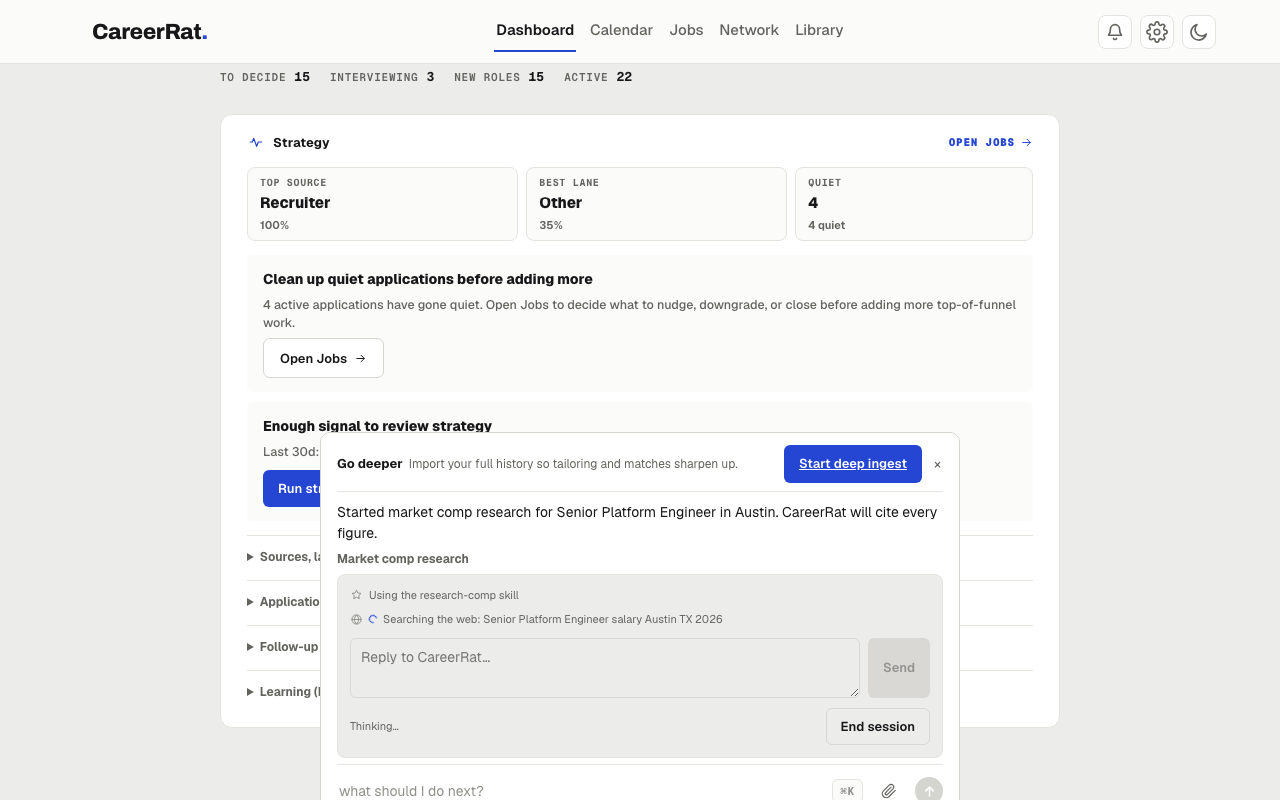
The app can handle local state changes such as promoting a role, updating a status, or editing settings. Longer or tool-heavy work opens a visible Ask conversation and hands the task to the owning skill. Each step shows as a live activity line, an icon and a plain-language label like "Reading files: resume.pdf" or "Searching the web", with a spinner that settles once the step finishes. The assistant only speaks to ask a question or hand you a result.
Application preparation can inspect and fill supported forms. Once the answer review is clear, the job panel checks its opt-in permission, offers Allow form preparation when needed, and resumes the exact paused application mission. The final Submit action always stays with you. External-account changes remain confirmation-gated.